I am joining
Install the beta, set your profile, scan the host QR, wait in the lobby, and keep your eyes up when the round starts.
Join guidePlayer guide
Use this guide to redeem access, join a game, host a round, and understand the main modes without reading a giant manual.
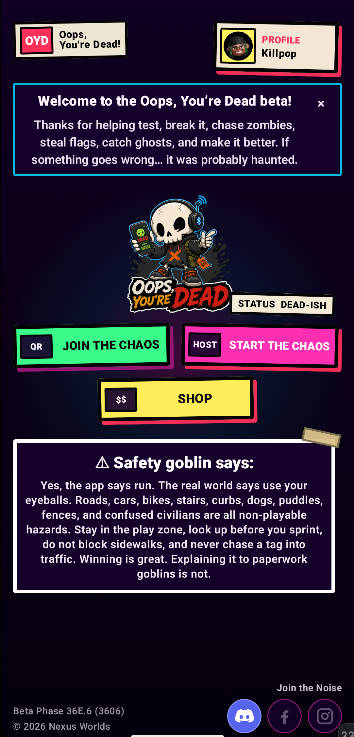
Start here
Use the path that matches what you are doing right now. You can come back for the rest after the radar has accused you of something.
Install the beta, set your profile, scan the host QR, wait in the lobby, and keep your eyes up when the round starts.
Join guideChoose Android Host or Windows Host, set a clear play zone, explain boundaries, legal crossings, and the 30-second out-of-zone rule, then start with a short test round.
Host guideUse the current Internal Testing build, join Discord if you can, and send bug reports with the mode, host type, phone model, and what went wrong.
Bug report guideAbout
Oops, You’re Dead! is a real-world phone tag game for teens and adults who want a reason to get outside, move around, and play something ridiculous with friends.
Instead of keeping tag on a playground, the host can turn a park, campus, event site, neighborhood route, or several city blocks into the play zone. The app handles the timer, teams, radar, objectives, flags, ghosts, zombies, and score.
Big games are part of the point. Bigger zones can be more fun, but they also need better boundaries and more attention. The app warns players when they get close to the play-zone edge. If a player goes outside the zone, they have 30 seconds to get back in before they are booted from the round. Cross streets only at legal crossings when it is safe, watch for cars, bikes, pedestrians, pets, and other people, and check the phone only when you are stopped somewhere safe.
Large play
OYD is not park-only. A good play zone can be a big park, a campus, a festival site, a neighborhood loop, or several city blocks. Keep it large, clear, legal, and easy to explain.
Cross roads only at designated crosswalks or legal crossings, and only when it is safe.
Watch for cars, bikes, scooters, pedestrians, pets, curbs, signs, doors, crowds, and street furniture.
Look at the phone only when stopped somewhere safe. Do not run while staring at the radar.
Give non-players space. Do not block sidewalks, doors, transit stops, businesses, or crowds.
Explain the boundary, crossings, off-limits areas, safe stop points, and the 30-second return rule before starting.
Quick start
Start here if you are installing the beta for the first time.
Use the current Internal Testing link from the beta page. Closed Testing links will be added after they become active. Use the APK only as a backup.
Tap the profile card in the top-right of the home screen to set your player name, avatar, and language.
In the app, use Profile → Redeem. On the website, use Player login → Redeem code.
Tap Join the Chaos / Join a Game, allow the camera while using the app, and scan the host QR.
Know the boundary. If the app warns you near the edge, return safely. If you leave the zone, you have 30 seconds to get back in.
Access
Redeem codes can unlock tester access, DLC, themes, or other access tied to your account.
Make sure you are logged into the same account that originally redeemed it.
Do not post full private codes in public Discord channels. Share only a screenshot of the message and the code label if you need help.
Join
This is the normal player path. You need the app and the host’s join QR code.
Before scanning in, make sure you know the play zone, off-limits areas, safe/legal crossings, and where to stop if you need to check the phone.
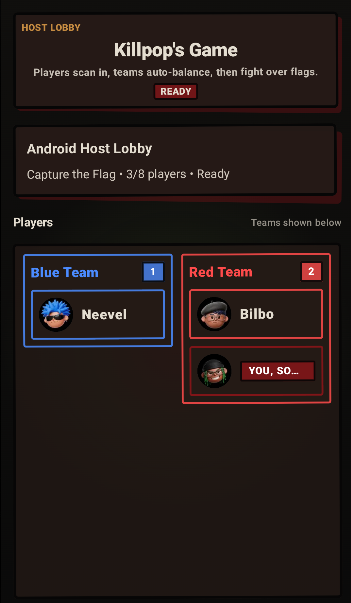
Host
Use Android Host when one phone is acting as the game host.
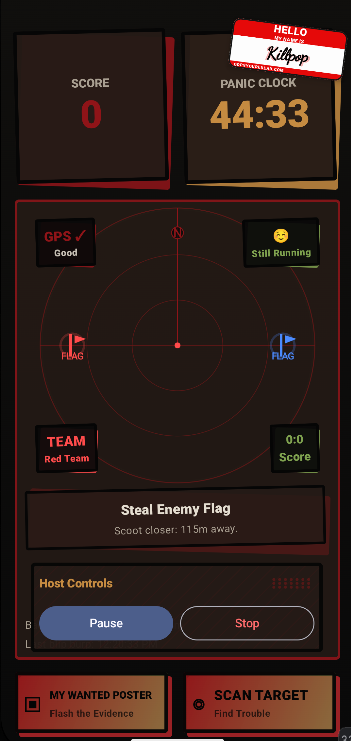
Windows Host
Use Windows Host when a laptop or PC is running the host app and players join from phones.
Host settings
Most first games can use the defaults. These are the settings worth knowing first.
On Android, the Play Zone is a radius around the host. Stand near the middle of the space you want to use before creating the game. The map preview shows the area it covers. During play, the app warns players near the boundary. A player outside the zone has 30 seconds to return before being removed from the round.
Enter the name of your server. Be creative, but keep it respectful and not offensive.
Theme changes the colors and sometimes the layout/design of game screens. Try different ones, but pick something readable for the group.
The section after Game Mode contains settings for that mode, such as timing delays, health hearts, number of zombies, score limits, or other rules.
This is the maximum number of players. The default can usually be left alone and is limited by your device or account level.
Team Elimination and Capture the Flag use teams. You can adjust team names and colors before starting.
In modes that allow player tagging, Bluetooth Proximity Tagging lets players tag by getting close enough and holding the tag button instead of scanning a local QR code.
Game modes
There are five total modes: three regular modes and two DLC modes. Start simple, then try bigger zones and more players once everyone understands the basics.
Two teams hunt each other. Best for groups and clear open spaces. Start teams on opposite sides, tag players on the other team, and keep moving until one side is wiped out. There is no friendly fire.
Two teams, two bases, two flags, one very loud argument about who was “basically there.” Capture the enemy flag and bring it back to your base to score. The default score limit is 3.
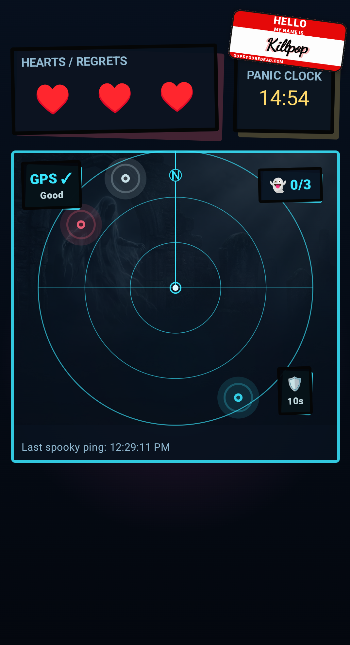
Small-group or solo-friendly. Hunt ghosts on the radar, charge the trap, and catch them before time runs out. Some ghosts patrol. Some chase. All of them are rude.
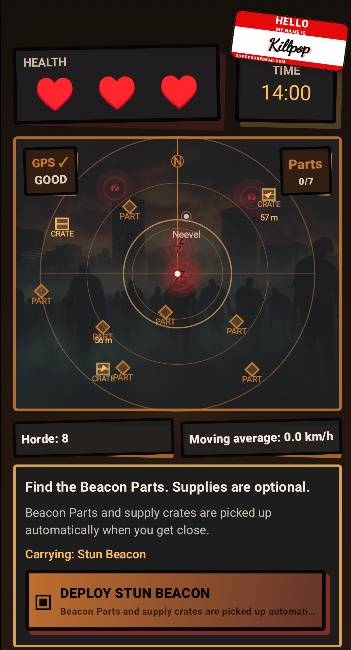
Co-op survival. Find beacon parts, grab useful supply crates, deliver parts, and reach the extraction point before the zombies turn the plan into soup. Good for small groups or solo testing.
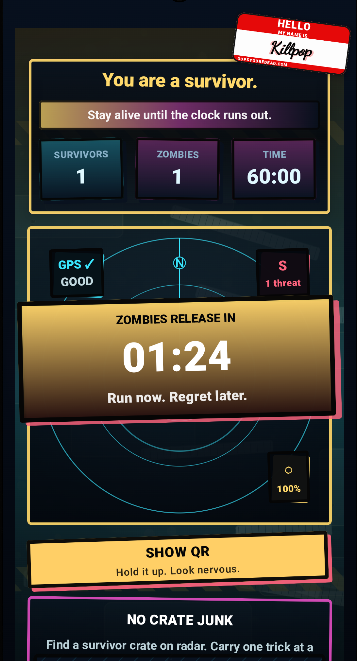
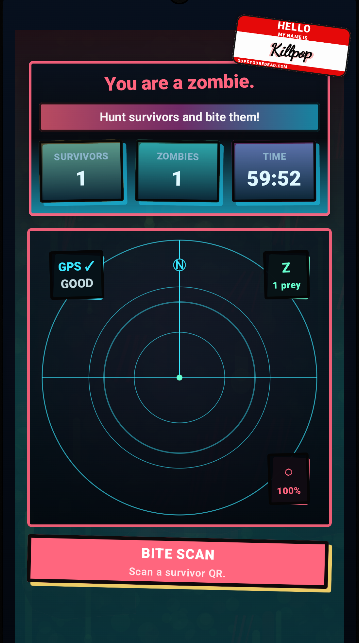
Group chaos. Some players become zombies after the release countdown. Survivors run, use crates, and try to last until time runs out while the play zone shrinks. Zombies win by biting everyone.
Screen guide
Most screens share the same basic pieces: timer, radar, GPS status, player status, objective markers, and mode-specific action buttons.
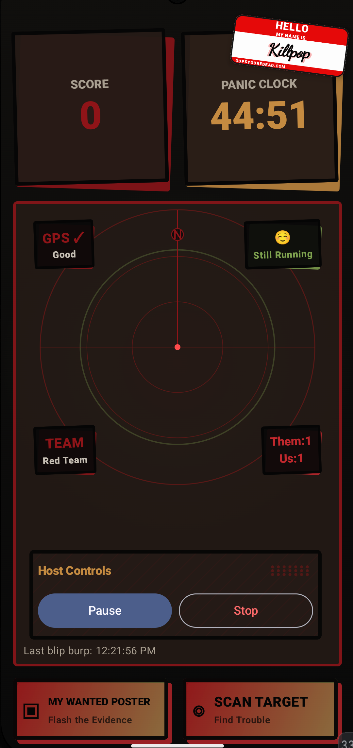
Testing
The in-app bug button is best because it can attach helpful context. Discord is great for follow-up and test-night chatter.
Open the bug report button from the app when something breaks. Add a short note while the problem is fresh.

Tell us the mode, host type, phone model, whether you were hosting or joining, what you expected, and what actually happened.
A screenshot or debug log can help a lot. Do not include private redemption codes, passwords, or anything from non-players.
Community
Discord is not required to open the app, but it helps organize test nights, share known issues, ask install questions, and follow up on bug reports.
Keep posts clear: what mode, what host, what phone, what happened, and whether you already sent an in-app report.
Do not post private codes, exact home locations, passwords, personal info, or photos of non-players without permission.
If you find an install fix, hosting trick, or safe play-zone idea, share it. The horde learns faster when everyone yells useful things.
Host briefing
Before starting a large or city-block game, the host should give a quick safety briefing.
First round